Showing posts with label PST. Show all posts

Thursday, 21 September 2017

Remove Duplicate Emails in Outlook 2007, 2010, 2013 & 2016 - Top 4 Free Methods

remove duplicate emails from Outlook

Duplicate emails are those emails that appear repeatedly in Outlook PST files. A lot of confusion is created among users deciding; what to do with the email consisting of duplicates or where to find and remove duplicate emails in Outlook. You can see the below screenshot of duplicate email messages in Outlook.


Tips- If have several Outlook emails and want to merge and remove duplicate emails in Outlook 2016, 2013, 2010, 2007 and all below editions, you can use Merge PST Files software. This tool helps you to combine Outlook emails, contacts, calendars without duplicates.

Reasons Behind Duplicates Emails in Outlook

Many things can cause Outlook items to duplicate, but the most common reasons are discussed below:
  • Outlook’s email-related ‘Account Settings’ can cause emails to duplicate. If the ‘Leave Messages on the Server’ settings option activated it may result in multiple copies of messages being created.
  • Synchronizing Outlook with other applications/devices (Phones, PDAs, etc.)
  • Other Reasons: You may receive multiple copies of the same email from your friends or colleagues who may forward it to get your attention.
  • Sometimes even your anti-virus software may also create duplicate e-mails.

Impact of Duplicate Emails in Outlook

The following consequences may be encountered if you do not remove duplicate emails in Outlook:
  • Outlook will start to slow down in performance. For example, if you want to find a particular message using the Instant Search feature of Outlook, but all that you see is "Searching". Moreover, you have to wait patiently while Outlook repeats the searching process through all email messages in a given folder including duplicated ones.
  • In most of the systems, Outlook starts to slow down when the mailbox crosses its size limitation, and if you do not reduce the size of your mailbox containing Outlook data, your Outlook may start hanging, freezing and not responding.

4 Free Solutions to Remove Duplicate Emails in Outlook

1) Account Settings: Sometimes by mistake, when you attempt to configure Outlook PST files more than one time it may add many accounts to MS Outlook synchronizing same PST data for those files, which create duplicates in Outlook.
Do the following steps to remove the duplicates in this case:
  • Go to File >> Info >> click on Account Settings.
  • You will see the Account Settings window. There in the E-mail tab, search the name of the account configured to Outlook. If the same account appears more than one time, then remove an extra account. To do that, drag your cursor, select the E-mail account, and click on Remove.
  • After removing the duplicate account, click Close.
2) Import/Export: Do the following steps (see the pictorial steps) to use this method:
  • Start Outlook and click on File >> select Open & Export >> click on Import/Export
  • You will see Import and Export Wizard window, select an option Import from another program or file and click Next.
  • You will see Import a file window, select Outlook Data File (.pst) and click Next.
  • You will see Import Outlook Data File, browse the file to import and check Do not import duplicates and click Next.
  • Finally, select Outlook Data File to export complete data or you can select the particular folders of ‘Outlook Data File’ after clicking on the selected folders >> click on Finish.

3) Modifying ‘View’ settings in Outlook to remove duplicate emails in Outlook

For Outlook 2002, Outlook 2003, and Outlook 2007:
  • For Outlook 2002 and 2007, click on Current View under the View menu to change the option from folder view into a table type view.
  • For Outlook 2003, under Arrange By option on the View menu, select and click on Current View to change the option from Folder View into a Table Type View.
  • Right-click on the heading of the column (it’ll show some options) >> click on Field Chooser.
  • A list will be displayed, click on All <item name> fields.
  • Impediment the Modified field and drop it to the table heading.
  • Justify that the duplicate items have a different date from the initial set of items. If it is different, click on Modified heading so that the items are ordered using this field.
  • In the set click the first item that you wish to delete >> turn to the last item in the set that you need to delete.
  • Click on Shift+Delete key to delete it permanently.
For Outlook 2010:
  • In the Ribbon of Outlook click on View >> select Change View >> click on Preview to change the option from folder view into a table type view.
  • Right-click on the heading of the column >> click on Field Chooser.
  • From the Field Chooser, select the option All Mail fields.
  • Impediment the Modified field into the table heading.
  • Validate that the duplicate items have a different date from the initial set of items. If it is different, click on Modified heading.
  • Click the first item in the set that you need to delete >> spin to the last item in the set that you prefer to delete.
  • Press and hold the key SHIFT+DELETE and release them together to delete the duplicate items for permanent basis.
4.) Use Outlook's Clean Up Tool
Clean Up Tool is a feature of Outlook that allows you to remove duplicate emails in Outlook. Below are the steps you need to follow:
  • Open your MS Outlook >> click on Clean Up from the ribbon bar of Outlook window to expand all the options.
  • After expanding three options will be given: “Clean Up Conversation”, “Clean Up Folders”, “Clean Up Folders & Subfolders” >> click on “Clean Up Folders & Sub folders” option.
  • A box namely “Clean Up Folder” will pop up >> which will ask you whether to proceed the clean up or cancel? Click on “Clean Up Folder”.
  • Another option that a “Clean Up Folder” show is “Settings”, click on “Settings” option to manually provide the location of deleted items folder (If you are using your own custom location to save deleted folder instead of default location).
  • After clicking on “Settings” it will open “Outlook Options” window >> click on “Browse” to provide the location of PST file.
  • A pop up will appear by name Select Folder (showing all the available folders in Outlook) >> click on Deleted Items >> click OK.
  • At final, click on “Clean Up Folder”.

Failure of Manual Solution and Need of ODIR Download

  • If you have a smaller sized PST file that consists of few hundred emails in your inbox or archive folders, then it may be possible that you never faced the problem of duplicate emails and this will hardly happen to you in the near future. However, the fact is that an average Outlook user receives around 50 to 100 messages a day.
  • Therefore, most of the users have thousands or more emails stored in various folders and users may have no idea how many duplicated emails are actually present in their Outlook profile.
  • Sometimes, a user may experience an error while using the Outlook's Clean Up Tool with the error message: "No messages were cleaned up. Only messages that satisfy your clean up settings will be moved to the trash folder."

Download Outlook Duplicate Remover 

In both of the above conditions, the user may not be able to solve the problem manually. So, they may need to download some reliable ODIR tool available on the internet like Outlook Duplicate Remover that I recommend to you on the basis of my experience and usage. This utility helps to duplicate emails in Outlook PST file/folder in a bulk, saving your time and is possible in few easy and simple steps (which may be helpful for the non-technical users). In addition to this, a user can locate and delete duplicate emails via multiple email fields also like to, cc, subject, from, attachment, etc.

Conclusion

To remove duplicate emails in Outlook 2016, 2013, 2010, 2007, 2003 and below versions, just follow the above steps in order to avoid redundancy issues that occur in MS Outlook. However, these manual procedures will be only applicable for smaller sized PST file.
Remove Duplicate Emails in Outlook 2007, 2010, 2013 & 2016 - Top 4 Free Methods Clark Kent 4.5 of 5
Duplicate emails are those emails that appear repeatedly in Outlook PST files. A lot of confusion is created among users deciding; what ...

Wednesday, 7 December 2016

PST File in Use By Another Application Error in Outlook - Resolved

Microsoft Outlook is used by most of the users to have a smooth communication and managing their personal information. It is the most significant email client application used by the corporate world. It is not only a medium of communication but also used to manage users personal information as well. In order to store different data files such as messages, notes, calendar, tasks, etc., Outlook uses PST file format. However, PST files easily gets corrupted, which leads to unexpected behavior in MS Outlook. If PST files exceed its maximum file size limit then also it can gets corrupted. If a user tries to access these corrupted PST files, it generates a different type of errors in Outlook data file. PST in use by another application is one such type of error that a user can face while working on Outlook with corrupted data files. Therefore, in this post, how to overcome such type of errors and how to recover PST file in Outlook are discussed.

Types of Error Messages

When a user tries to access Outlook data files (.pst), he may encounter the following error message:

OR

These are the two types of error messages that a user gets even if he has full permissions and access to PST file. Moreover, there is no password on the Outlook Data (.pst) file. This can also affect an Offline Outlook Data (.ost) file of Outlook also.

Why PST File in Use By Another Application Error Occur in Outlook

If a user faces such type of error frequently as he starts Outlook, then there must be reasons behind this. Therefore, in this section, all the possible causes of this error are discussed.

  1. Large size PST file, may lead to corruption in Outlook data file that results in such type of errors.
  2. Outlook data file (.pst) are corrupted or damaged due to some virus or malware attacks.
  3. If a user is having large size PST file, then it takes a long time to backup and meanwhile, some other user tries to access the PST file then he encounters ‘Outlook data file in use by another application’ error.

How to Resolve PST File Error in Outlook

In order to overcome PST file open in another program error, one can try the solutions mentioned below:

  • If a user constantly getting this PST file error, then he needs to stop the backup program.
  • If a user receives this error even after stopping the backup program, then PST file must be corrupted. However, there is need to repair PST file in Outlook.

Repair Corrupted PST File using SCANPST.EXE

Microsoft Outlook provides users an in-built utility names as Inbox Repair Tool or scanpst.exe to repair corrupted or damaged Outlook data file (.pst). It first scans the PST and then repairs it. It is the utility that can easily be used by the users to remove only low level of corruptions from PST files. There are various situations such as when it comes to repairing severely corrupt PST files, scanpst.exe fails. It is an effective utility but with limited features. Now, to overcome all limitations of scanpst.exe, the best solution is trusted third party tool.

Advance Solution to Repair Damaged PST File

In order to remove all type of corruption from PST file, one can use a trusted third party Outlook PST Repair Tool. It is the reliable and advance tool that repair all type data items such as emails, calendars, notes, journal, etc., in PST files. A user can use this tool to remove both minor and major level of corruption from Outlook data files. The software is designed in such a way that it recovers PST file even without Microsoft Outlook installation on the local machine.

Why use Outlook PST Recovery

To resolve PST file in use by another application error due to corruption in PST file, one can try this Outlook PST file Repair tool. It helps users in following ways:

  • It repairs all type of corruption from Outlook PST file without any problem.
  • One can use this tool to repair password protected corrupt PST file in Outlook.
  • Recover hard deleted Outlook emails also without any hassle.
  • A user can also export only selective emails after recovery using this tool.

Conclusion

How to resolve PST file in use by another application error in Outlook is one of the most popular searches regarding PST file error. After understanding the root cause of such type error in PST file, an in-built scanpst.exe utility of Outlook is suggested to resolve such type of error. As scanpst.exe has some limitations, therefore, to repair PST file with any type of corruption, a user can try Outlook Recovery. It is the most reliable method to resolve all type of errors from PST file.

PST File in Use By Another Application Error in Outlook - Resolved Clark Kent 4.5 of 5
Microsoft Outlook is used by most of the users to have a smooth communication and managing their personal information. It is the most signif...

Wednesday, 22 June 2016

Inbox Repair Tool: Free Solution to Fix Corrupt PST Files

Introduction

To whom you first consult when you feel ill and treat you when you get infected? Obviously, the family Doctor. In the same manner, there is also a family Doctor for the Outlook’s Data Storage  (.pst) file which deals with the corrupted PST files and acts as the first medium to repair them.

When Outlook refuses to load a .pst file because of the software issues and doesn’t display a PST file and shows an error , then Inbox Repair Tool helps to recover the file. Inbox Repair Tool is technically known as scanpst.exe.

Key Concepts

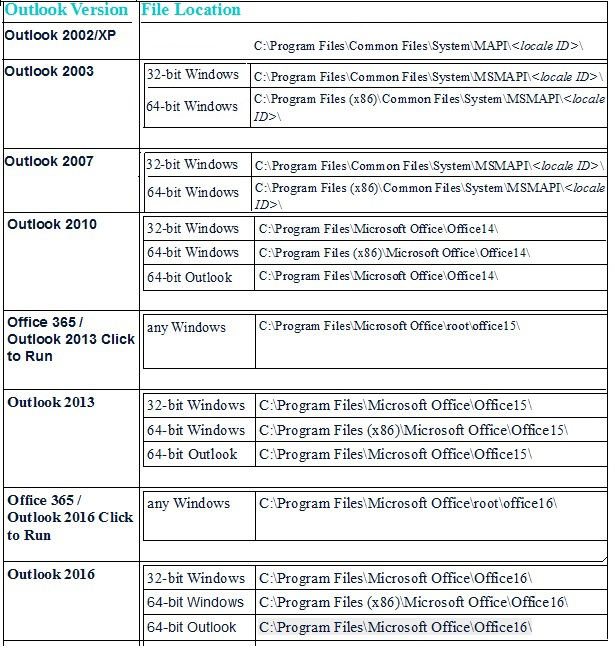
For different versions of Windows, the location scanpst.exe saved is different. Means its location differs in both Windows 32 Bit and 64 Bit.It also depends on the language we have installed.

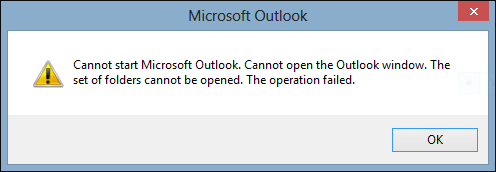
We use this tool when Outlook refuses to show or load a PST file and displays an error similar to:

Different Locations of Inbox Repair Tool

As we know, scanpst.exe is located at different locations for different versions so in the chart below we will read about those locations:

Repairing the Outlook Personal Folder File (.pst)

Taking example of Outlook 16 of 64-Bit version, the following steps have been performed:

  • Exit Outlook and manually Start the Inbox Repair tool.
  • Locate <disk drive>\Program Files(x86)\Microsoft Office\root\Office16 using Microsoft Windows Explorer, and then double-click the Scanpst.exe setup file
  • Repair the .pst file by typing the path and the file name of your personal folder file (.pst) or by click Browse to locate the file using the Windows file system.
  • Click Start to begin the scanning.
  • Click on Repair to process the corrupted file.
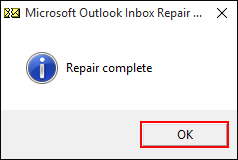
  • A Dialog box will appear showing the Repair is completed.
  • Start Outlook and load the repaired file to preview its items.

What If Repair Process Fails?

  • If the repair process fails, click on Try again
  • If it fails repeatedly then you are probably, still accessing the file in Outlook
  • Create a new pst-file in Outlook
  • Copy over its contents
  • If the pst-file is no longer accessible in Outlook and the it can’t be repaired by the Inbox Repair Tool, we’ll have to restore it from backup or use a 3rd party recovery tool

Conclusion:

It is not difficult to repair or recover corrupted PST file. First approach is Inbox Repair Tool and if it doesn’t work then we can switch to a 3rd party PST Recovery tool. It works on the same principle that if we don’t get over the problem well with the help of a family Doctor, then we consult the hospital. You can download Outlook PST File Recovery tool to from AllTipsFinder to recover Outlook data file and easily fix all the bugs in PST file

Inbox Repair Tool: Free Solution to Fix Corrupt PST Files Captain Ashish 4.5 of 5
Introduction To whom you first consult when you feel ill and treat you when you get infected? Obviously, the family Doctor. In the same man...

Tuesday, 7 June 2016

Implementing PST Security Utilizing Email Archiving

What is PST File?

PST can be expanded as Personal Storage Table. It is one of the file extensions for Microsoft Outlook and is generally used to store the compressed clone of all the features provided in Outlook such as Messages, Calendar, To-do-List, Events etc. within the Microsoft Software  (Microsoft Outlook). It is also beneficial for storing archived items and thereby saving the storage space in main servers.
Implementing PST Security Utilizing Email Archiving Clark Kent 4.5 of 5
What is PST File? PST can be expanded as Personal Storage Table . It is one of the file extensions for Microsoft Outlook and is gener...

Wednesday, 17 February 2016

How Scanpst.exe helps repair to Corrupt Outlook PST File?

If Microsoft Outlook or similar without Exchange Server is used, data (Personal Folders) stored in PST files. These files contain all email, contacts, calendar, tasks, notes, etc.And, Are you getting some sort of error while running Microsoft Outlook or something more worsen is going on like Outlook has prohibited access of PST file. In all these scenarios, one tool called scanpst.exe or aka Inbox Repair Tool comes in handy.Scanpst.exe is a tool from Microsoft that is used to repair broken PST files in Outlook Inbox. So, you need not be equal to panic if your Outlook reports an error. We tell you how it comes close to the tool and how it works.
Before anything else, I mean before directly jumping into this all stuff, you must have apparent knowledge that where does this Inbox Repair Tool exist in your machine and then we would head ahead on its execution.  To put it another word, I am simply going to prepend the required information (location of scanpst.exe) before the secondary one (execution).

Locate Inbox Repair Tool in your machine:

Outlook 2016
32-bit Windows - C:\Program Files\Microsoft Office\Office16
64-bit Outlook - C:\Program Files\Microsoft Office\Office16


Outlook 2013
32-bit Windows - C:\Program Files\Microsoft Office\Office15
64-bit Outlook - C:\Program Files\Microsoft Office\Office15

Outlook 2010
32-bit Windows - C:\Program Files\Microsoft Office\Office14
64-bit Outlook  - C:\Program Files\Microsoft Office\Office14

Outlook 2007
32-bit Windows - C:\Program Files\Microsoft Office\Office12
64-bit Window - C:\Program Files (x86)\Microsoft Office\Office12
Now, we will read how we can run the scanpst.exe in order to repair the PST file:

1.) Give the field the path & file name of the Outlook Data (.pst) File to be scanned or repaired.2.) Now, assign a path at where the resultant PST file would be saved by Scanpst.exe.
3.) Hit on start to initiate the scanning process. Remember, your PST file is undergoing a scan and it is not sure how much time it will take in completion.
4.) Once, the process is completed create a backup of the scanned PST file by choosing “backup of scanned file before repairing create” option. This creates a .bak file of your entire scanned Outlook Data File, which mostly proved to be useful in case of data loss or when your scanpst.exe does not provide the expected outcome.
5.) Have a look of numbers of items present in Outlook PST file and numbers of errors detected by scanpst.exe.
6.) Click on Repair button and finally begin the repairing process. This process may take time as it depends on the size of PST file. For instance, if you run a test on 2GB PST file, then it will hardly take 2 minutes. On the other hand, if a 10GB PST file is being processing via Inbox Repair Tool, then there is no guarantee about entire process and time consumption.
7.) At last, when the scanpst.exe end up the repairing process and ask you to check the location where it would has saved the PST file. Go at that location and try to import or open the repaired Outlook Data File in Microsoft Outlook.

Other alternative can be also considered to repair the PST file because the INBOX Repair Tool does not deemed as the all-in-one solution to deal with distorted Outlook Data File structure. One must also aware of Advanced PST Repair Tool
How Scanpst.exe helps repair to Corrupt Outlook PST File? Clark Kent 4.5 of 5
If Microsoft Outlook or similar without Exchange Server is used, data (Personal Folders) stored in PST files. These files contain all email...

Thursday, 8 October 2015

How to Combine Multiple PST Files Manually?

Most Outlook users create many archive PST files in the older editions of MS Outlook to avoid the risk of data corruption and slow performance. But nowadays in the latest Outlook editions like; Outlook 2016, 2013, 2010 and 2007 there are no size-related issues with PST file. So, most Outlook users ask about how to merge multiple PST files as one. 

Pro Tip: When a user is trying to join two or more PST files, there are high chances of duplicates in the resultant file. Thus, to remove duplicate emails from Outlook PST files, try the Outlook Duplicate Remover tool. 

A Simple Solution to Combine Multiple PST Files 

To join multiple PST files into one is not a complicated task; every Outlook user can easily perform this task within two processes;
1.   Create a new blank PST file
2.   Import all PST files into the newly created (blank) PST file
Download PST Merge Software

Step 1:- Create a New Blank PST file;
1.) First of all open MS Outlook Program.
2.) Click on the “New Items” and select “More Items” from the drop-down menu. After that select the “Outlook Data File” option.
3.) After that select the location to save PST file and provide a name for the new PST file. Now click on the “Ok” button.

Step 2:- Import all PST files into new blank PST file
After that select the Import option of MS Outlook to import all PST files one by one into the newly created PST file. You can use the Import PST File option by deploying a few easy steps;
1.) Now click on “File” tab > “Open” > “Import”.
2.) After that, an “Import and Export Wizard” will appear. Select “Import from another program or file” from the list and click on “Next”.
3.) Now select file type to import from. Click on “Outlook Data File (.pst)” and click on “Next”.
4.) Click on “Browse” and select the file to import. Check the box “Do not import duplicates” and then click on “Next”.
5.) Select the folder to import from. Check the box “Include subfolders” and “Import items into the same folder in”. Then click on “Finish”.

Repeat the same steps for all PST files to import Outlook, which you want to combine into one.

Related Solutions: 

After importing all PST files, you can get their data in a single PST file. If you want to use this PST on a different machine, then simply export this PST file and get a single PST file for all data of multiple PST file, and use it as per your requirement.
How to Combine Multiple PST Files Manually? Clark Kent 4.5 of 5
Most Outlook users create many archive PST files in the older editions of MS Outlook to avoid the risk of data corruption and slow perform...